Managing orders and sessions
The Sessions section of the Merchant Portal is where you find every checkout session your customers have started, and where you manage the resulting orders: capturing, refunding and cancelling them.
Orders
- Go to Sessions > Orders.
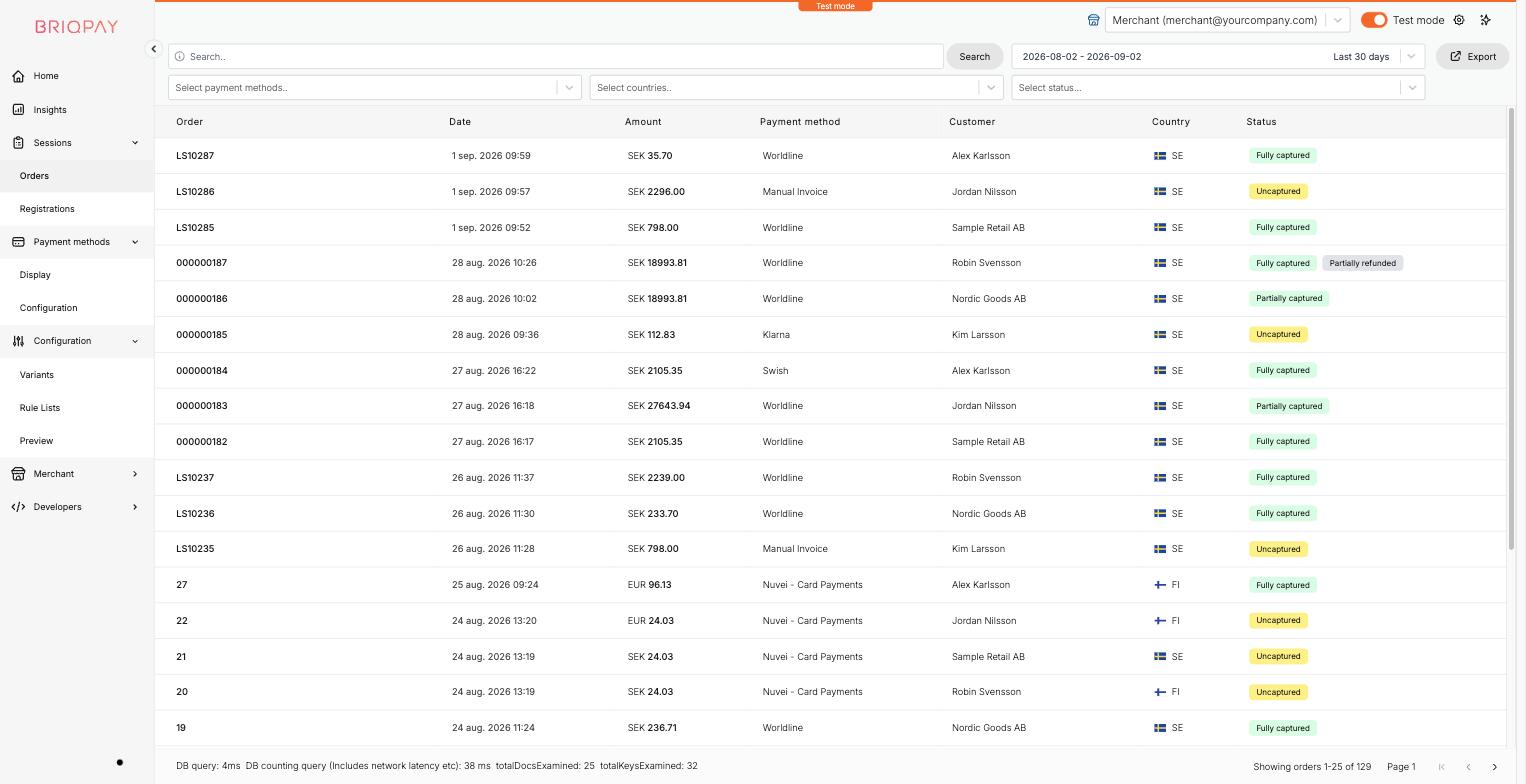
- You will see a table of every order, with its order number, date, amount, payment method, customer name, country and status (for example Uncaptured, Fully captured, Partially captured, or Partially refunded).
- Use the tools above the table to find a specific order:
- The search box looks up orders by reference or customer details.
- The date range picker filters orders to a specific period (defaults to the last 30 days).
- Select payment methods and Select countries filter the list to specific methods or markets.
- Select status filters by order status.
- Click Export to download the currently filtered list.
- Click any order row to open its order detail page.
The order detail page
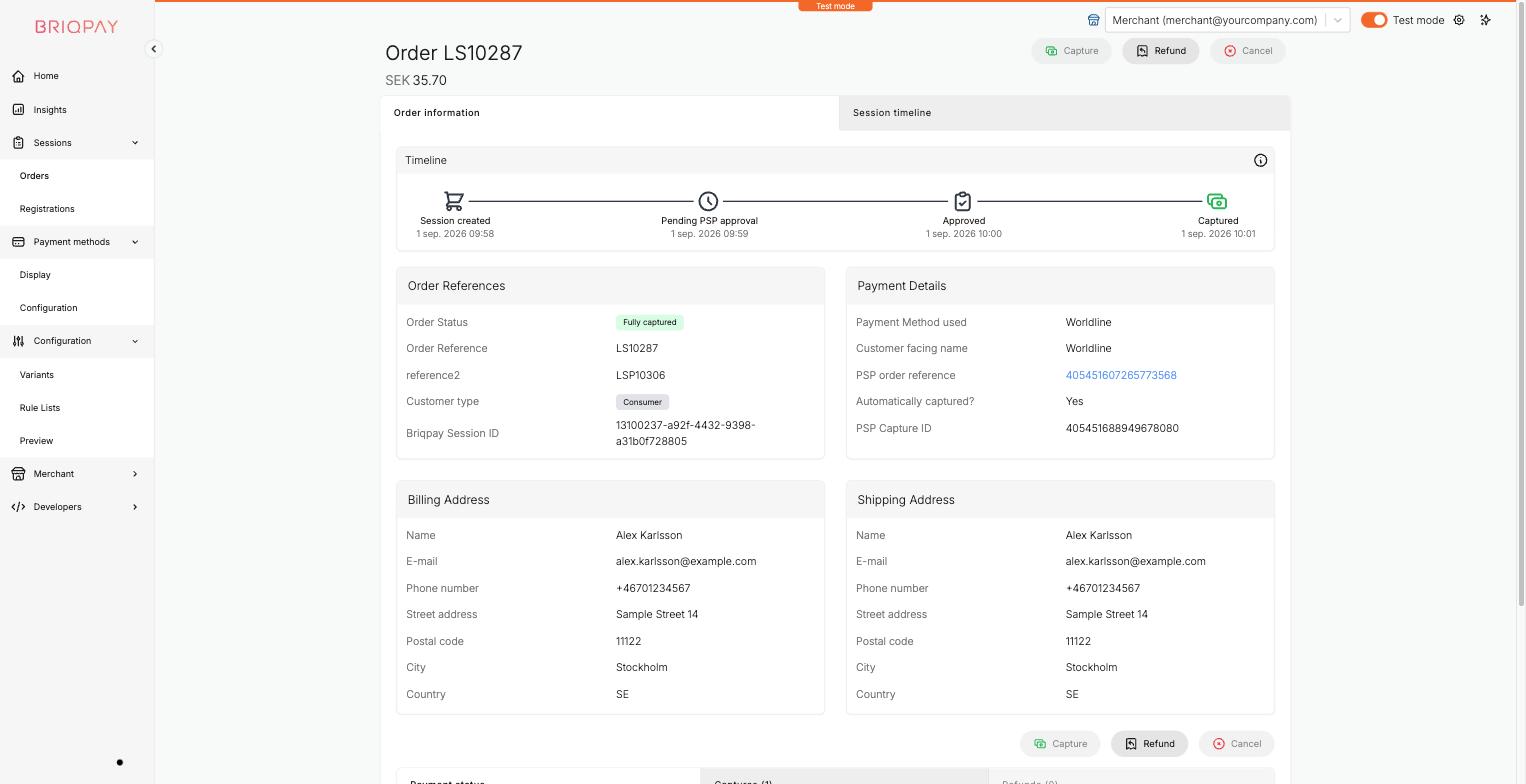
Opening an order shows you:
- A Timeline of the order's lifecycle, for example session created, pending PSP approval, approved, and first capture, each with a timestamp.
- Order References: order status, your order reference, the Briqpay session ID and customer type (Consumer or Business).
- Payment Details: the payment method used, the customer facing name, the PSP's own order reference, whether the order was automatically captured, and the PSP capture ID.
- Billing Address and Shipping Address for the order.
- Cart details: every line item with quantity, price, VAT, discount, captured and refunded amounts, plus the total, captured and uncaptured amounts for the order.
- A Session timeline tab with a more detailed technical log of everything that happened during the session.
Capturing, refunding and cancelling orders
At the top of the order detail page you will find three action buttons:
- Capture: charge some or all of the remaining uncaptured amount on the order. Use this if you did not enable automatic capture for the payment method, or if you want to capture in stages (for example as you ship partial deliveries).
- Refund: return some or all of a captured amount back to the customer.
- Cancel: cancel the order before it has been captured.
Only users whose role has the relevant Order management permission (Capture Order, Refund Order, Cancel Order) can see and use these buttons; see the "Team, roles and account settings" guide for how permissions work.
Working in test mode
Remember that with Test mode switched on, the Orders list only show sessions created with test credentials, keeping your test activity completely separate from real customer orders.