
Briqpay
Developers: API Keys

Developers: API Keys

Creating and securing API keys for integrations.

Developers: managing your API keys

If you or your development team are integrating directly with the Briqpay API (for example from your own e-commerce platform, ERP, or a custom checkout integration), you will need an API key. API keys are managed from the Merchant Portal.
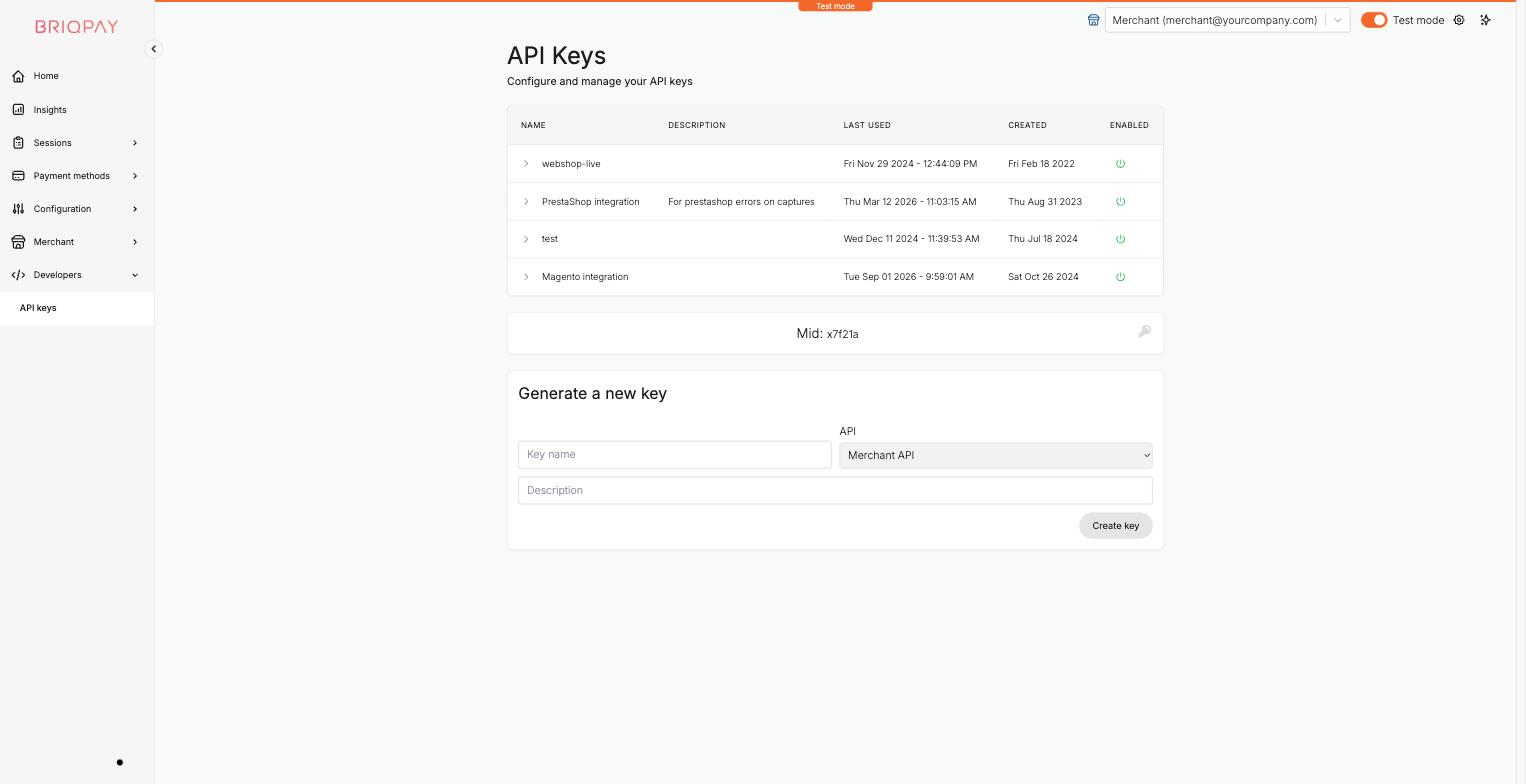
Creating an API key

  1. Go to Developers > API keys.
  2. You will see a table of your existing keys, with their name, description, when they were last used, when they were created, and whether they are currently enabled.
  3. Your merchant ID (Mid) is shown just below the table; you may need this when configuring an integration or plugin.
  4. Under Generate a new key, fill in:
    • Key name: a short, descriptive name so you can recognize the key later (for example the name of the platform or integration it belongs to).
    • API: the API this key should grant access to (for example the Merchant API).
    • Description: an optional longer note, useful if you have multiple keys for different purposes or environments.
  5. Click Create key. Your new key's secret is shown once; store it securely, since Briqpay does not display it again after this point.

Managing existing keys

  • Click the arrow next to a key's name to expand its details.
  • Use the enabled/disabled toggle in the ENABLED column to temporarily deactivate a key without deleting it, for example while rotating credentials.
  • Create a separate key for each integration or environment (for example one per e-commerce platform, or one for a specific in-house tool) rather than sharing a single key everywhere. This makes it easy to disable just one integration if a key is ever compromised, and to see from the "Last used" column which integrations are actually active.

API keys page in the Merchant Portal Developers section

Access to this page

Whether a user can view or manage API keys depends on their role's Developer > API keys permission; see the "Team, roles and account settings" guide for how to configure this.

Keeping your keys secure

  • Treat your API key secret the same way you would a password: never share it over email, chat, or commit it to a public code repository.
  • If you believe a key has been exposed, disable it immediately from this page and create a replacement key.
  • Use test mode credentials while developing and testing your integration, and only switch to live keys once you are ready to process real payments.
REQUEST A DEMO

Ready to simplify your payment setup?

Connect any payment provider. Optimize your payment flow. Scale without limitations - with Briqpay’s Payment Integration Platform.

STAY CONNECTED

Subscribe now for exclusive insights and updates.

Briqpay logo
Copyright © 2026 Briqpay AB All rights reserved
Terms & Privacy