
Briqpay
Insights

Insights

Analytics and reporting for your payment setup.

Understanding your Insights dashboard

Insights gives you performance analytics for your payment setup: conversion, payment method usage, and revenue trends, all in one place.

Home dashboard

Your Home page gives a quick "at a glance" overview, showing the same insight widgets and an order history chart for the last 7 days by default.
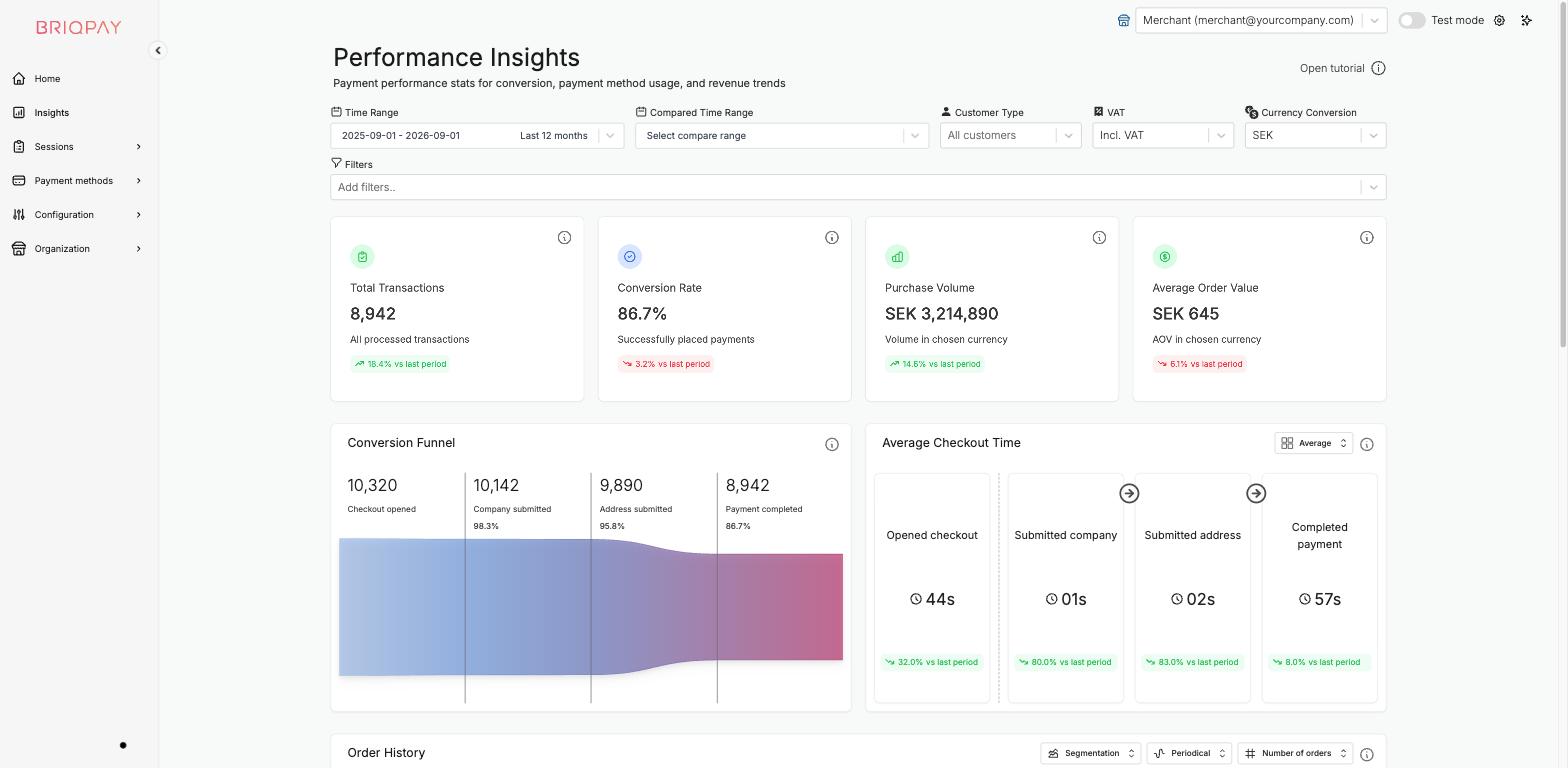
The Insights page

  1. Go to Insights in the left menu.
  2. At the top, configure the scope of the data you want to look at:
    • Time Range: the period to analyze (defaults to today).
    • Compared Time Range: an optional earlier period to compare against.
    • Customer Type: filter to all customers, consumers only, or business customers only.
    • VAT: choose whether amounts are shown including or excluding VAT.
    • Currency Conversion: the currency all amounts are converted to and displayed in.
    • Filters: add extra filters, for example by payment method or country, using Add filters.
  3. Click Open tutorial at any time for an in-app walkthrough of the page.

Performance Insights page with filters and chart placeholders

Available charts

  • Conversion Funnel: shows how customers move through your checkout, helping you spot where they drop off.
  • Average Checkout Time: how long, on average, customers take to complete checkout.
  • Order History: order volume or value over time, which you can break down by:
    • Segmentation: how orders are grouped.
    • Periodical: the time granularity (for example daily, weekly).
    • Number of orders: switch between showing order count or order value.
  • Payment Split: the share of orders per payment method.
  • Top Selling Products: your best selling products by units sold, shown as a bar chart.
  • Customer Turnover Breakdown and Customer Employees Breakdown: for B2B merchants, breakdowns of customers by turnover and company size.

Hover the info icon on any widget for an explanation of exactly what it measures.

Tips for using Insights

  • Use the Compared Time Range option to quickly see whether a change you made (for example enabling a new payment method, or updating your checkout theme) improved conversion.
  • Combine the Customer Type and Filters controls to check how a specific segment, market or payment method is performing before making changes to your Payment methods or Configuration setup.
  • Remember that Insights reflects data from the account context you are currently in: make sure Test mode is switched off if you want to see your real, live performance data.
REQUEST A DEMO

Ready to simplify your payment setup?

Connect any payment provider. Optimize your payment flow. Scale without limitations - with Briqpay’s Payment Integration Platform.

STAY CONNECTED

Subscribe now for exclusive insights and updates.

Briqpay logo
Copyright © 2026 Briqpay AB All rights reserved
Terms & Privacy